한 줄 요약: OpenScreen은 “예쁜 제품 데모/워크스루 제작”에 초점을 맞춘 Electron + React + PixiJS 기반의 오픈소스 녹화/편집 도구다. 전체 화면/특정 창 캡처, 자동·수동 줌, 오디오 믹싱, 타임라인 편집, MP4/GIF export, 프로젝트 저장까지 한 앱 안에서 처리한다.
분석 메모
- README와 실제 소스 구조를 같이 보면, 이 프로젝트의 강점은 UI보다 export 파이프라인에 있다.
- 공개 저장소 네비게이션 상 별도의 GitHub Wiki / Discussions 허브는 확인되지 않았고, 실질적인 협업 채널은 README, Issues, Project Roadmap, Discord, DeepWiki에 가깝다.
- README에도 명시되어 있듯이 현재 상태는 beta 성격으로 보는 것이 맞다.

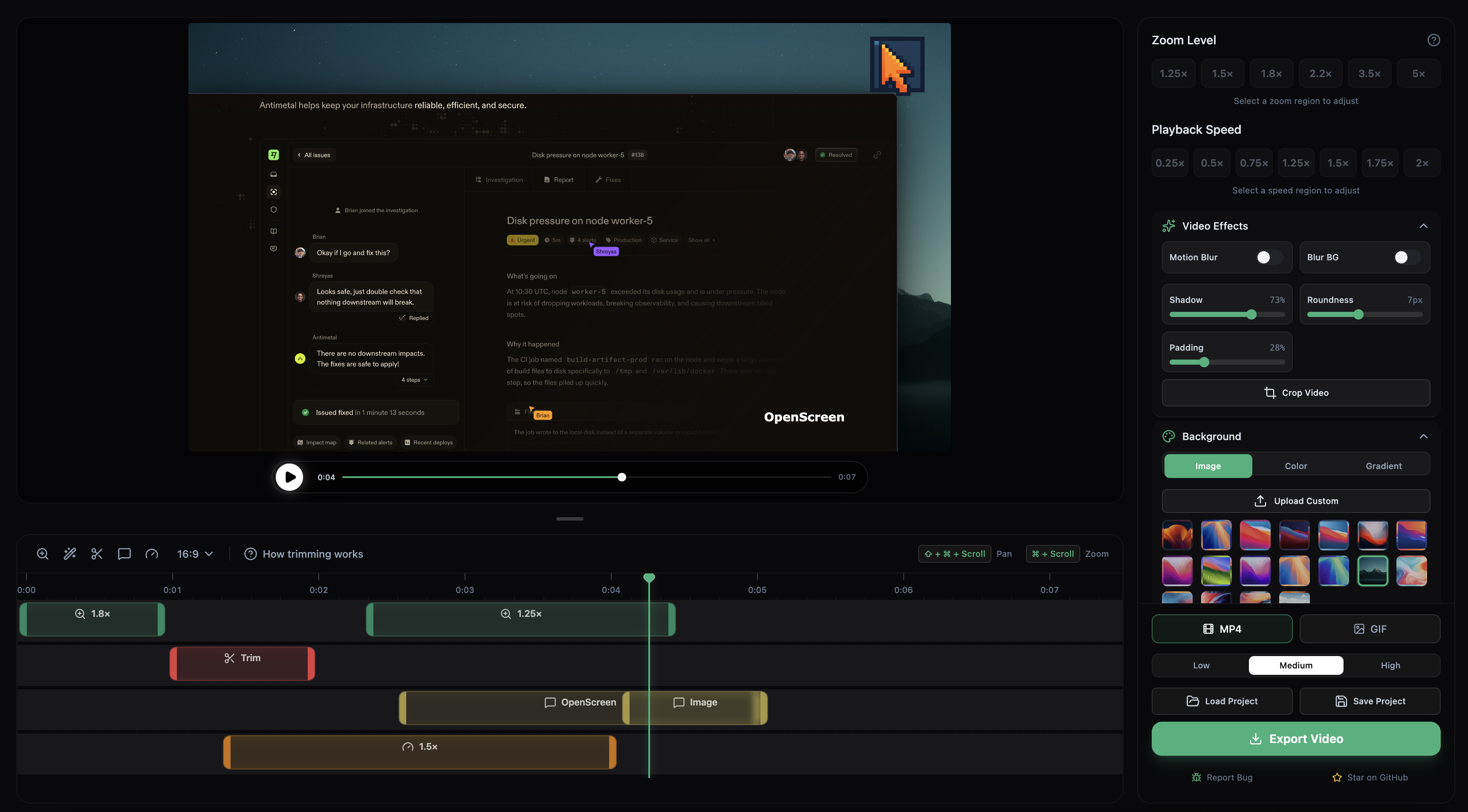
Quick Links
- Repository: https://github.com/siddharthvaddem/openscreen
- README: https://github.com/siddharthvaddem/openscreen#readme
- Releases: https://github.com/siddharthvaddem/openscreen/releases
- Demo / Homepage: https://openscreen.vercel.app
- Project-linked docs: https://deepwiki.com/siddharthvaddem/openscreen
- Project roadmap: https://github.com/users/siddharthvaddem/projects/3
- Community / Discord: https://discord.gg/yAQQhRaEeg
- License: MIT
- Related paper: 저장소에서 직접 연결된 논문/프리프린트는 확인되지 않음
Snapshot (analysis-time)
- 포지셔닝: “free, open-source alternative to Screen Studio”
- 릴리스 상태: 최신 릴리스는
v1.3.0 - 저장소 언어 비중: 사실상 TypeScript 중심
- 공개 커뮤니티 상태: Wiki/Discussions 보다는 Issues + Roadmap + Discord 중심
Key Features
- 화면/윈도우 단위 캡처
ElectrondesktopCapturer를 이용해 전체 화면 또는 특정 앱 창을 선택해 녹화할 수 있다. - HUD 기반 빠른 녹화 UX
별도 HUD overlay 창에서 소스 선택, 마이크/시스템 오디오, 웹캠 on/off, pause/resume/restart/cancel까지 바로 조작한다. - 마이크 + 시스템 오디오 녹음 및 믹싱
AudioContext로 시스템 오디오와 마이크를 합성하고, 마이크 gain boost도 적용한다. - 웹캠 동시 녹화 + 별도 트랙 저장
웹캠 스트림은 스크린 캡처와 분리된 파일로 저장되고, 이후 편집 단계에서 picture-in-picture 또는 vertical-stack으로 합성된다. - 자동/수동 줌 편집
- 수동 focus 지정 줌
- cursor telemetry 기반 auto-follow 줌
- zoom depth 단계 조절
- dwell 기반 줌 suggestion
- 타임라인 편집 기능
줌, trim, speed, annotation이 각각 별도 lane으로 관리된다. 즉 “단순 녹화기”가 아니라 경량 NLE(non-linear editor) 쪽에 가깝다. - 재생 속도 구간 편집
특정 구간만 0.25×~5× 이상으로 조절할 수 있고, export 시에는 오디오도 이에 맞춰 처리된다. - 크롭 + 배경 스타일링
crop, padding, border radius, shadow, blur, motion blur, solid color / gradient / wallpaper / custom background를 조합할 수 있다. - 주석(Annotation) 시스템
text / image / figure(arrow 등) annotation을 타임라인 구간에 배치할 수 있다.
text style, color, alignment, font size, custom font까지 제어 가능하다. - 다양한 화면비와 해상도 출력
16:9,9:16,1:1,4:3,4:5,16:10,10:16,native등 다양한 aspect ratio를 지원한다. - MP4 + GIF export
GIF는 별도 worker 기반 렌더링, MP4는 WebCodecs + muxer 기반 export를 수행한다. - 프로젝트 저장/불러오기
편집 상태를.openscreen프로젝트 파일로 저장/로드할 수 있다. - i18n + 단축키 커스터마이징
현재 코드상 locale은en,zh-CN,es가 포함되며, 주요 편집 액션용 shortcut도 저장/재사용 가능하다. - E2E 테스트 존재
최소한 GIF export에 대해서는 Playwright 기반 Electron end-to-end 테스트가 포함되어 있다.
Tech Stack
Core runtime
- Node.js
22.22.1 - npm
10.9.4 - Electron
^39.2.7 - React
^18.2.0 - React DOM
^18.2.0 - TypeScript
^5.2.2 - Vite
^5.1.6
Desktop integration / packaging
- vite-plugin-electron
^0.28.6 - vite-plugin-electron-renderer
^0.14.5 - electron-builder
^26.7.0 - 배포 타깃
- macOS:
dmg(x64,arm64) - Windows:
nsis - Linux:
AppImage(script상deb빌드도 지원)
- macOS:
UI / layout / interaction
- Tailwind CSS
^3.4.18 - Radix UI (
accordion,dialog,dropdown-menu,popover,select,slider,switch,tabs,tooltip등) - react-resizable-panels
^3.0.6 - react-rnd
^10.5.2 - sonner
^2.0.7 - lucide-react
^0.545.0 - react-icons
^5.5.0 - emoji-picker-react
^4.16.1
Timeline / graphics / composition
- dnd-timeline
^2.2.0 - pixi.js
^8.14.0 - pixi-filters
^6.1.5 - @pixi/filter-drop-shadow
^5.2.0 - gsap
^3.13.0
Media / decoding / export
- web-demuxer
^4.0.0 - mediabunny
^1.25.1 - gif.js
^0.2.0 - @fix-webm-duration/fix
^1.0.1 - fix-webm-duration
^1.0.6 - mp4box
^2.2.0
Testing / quality / tooling
- Playwright
^1.58.2 - Vitest
^4.0.16 - Biome
^2.3.13 - Husky
^9.1.7
빌드/구성 관점에서 눈에 띄는 점
vite.config.ts에서vite-plugin-electron/simple을 사용한다.- renderer alias는
@ -> src - 번들 chunk를
pixi,react-vendor,video-processing쪽으로 나눠 export 관련 의존성을 분리하려는 의도가 보인다. public/wasm폴더를 통해web-demuxer.wasm을 로드한다.
Architecture
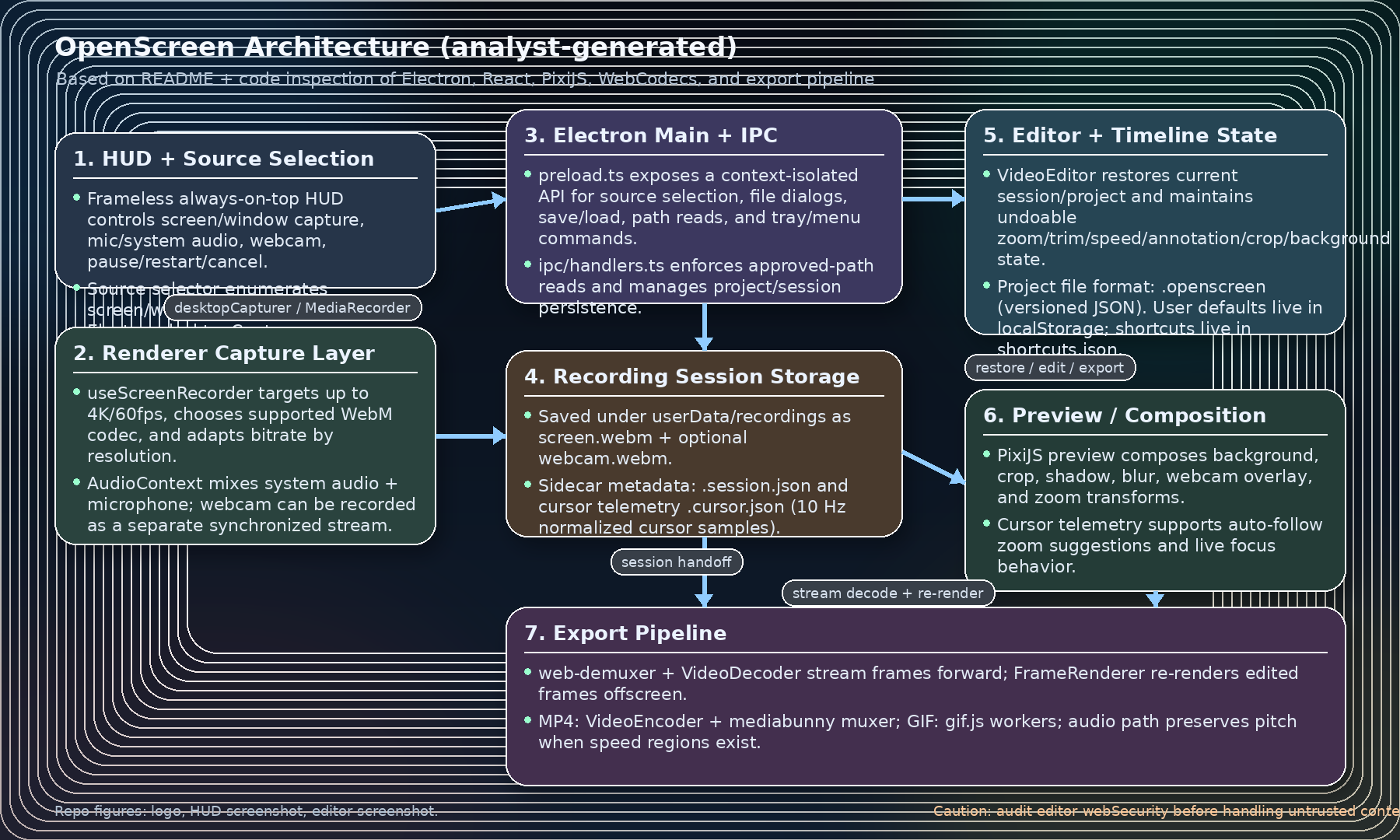
High-level flow
- HUD 창에서 녹화할 source(화면/창)와 오디오/웹캠 설정을 선택한다.
- renderer의
useScreenRecorder가getUserMedia+chromeMediaSource=desktop를 사용해 screen stream을 얻는다. - 필요 시 microphone + system audio를
AudioContext로 믹싱하고, webcam은 별도 녹화 스트림으로 유지한다. - 녹화 종료 시 Electron IPC가
screen.webm- optional
webcam.webm .session.json.cursor.json
를 저장한다.
- editor 창은 현재 recording session 또는
.openscreen프로젝트를 복원한다. - preview는 PixiJS 기반으로 crop / zoom / blur / shadow / webcam overlay / annotation을 실시간 합성한다.
- export 단계에서는 소스 비디오를 forward-stream decode 하고, 편집 효과를 다시 렌더링한 뒤 MP4 또는 GIF로 인코딩한다.
왜 이 구조가 좋은가
- 녹화 단계와 편집/export 단계를 분리해 UX를 단순화했다.
- 편집 상태를 프로젝트 파일로 분리해 re-editability를 확보했다.
- preview와 export가 “비슷한 시각 효과 로직”을 공유해 WYSIWYG에 가깝게 동작한다.
- cursor telemetry를 sidecar 파일로 두어 후처리형 자동 줌을 가능하게 만들었다.
Source code map
electron/
  main.ts                  # 앱 lifecycle, permission, tray/menu, startup
  windows.ts               # HUD / source selector / editor BrowserWindow 정의
  preload.ts               # context-isolated renderer API bridge
  ipc/handlers.ts          # source selection, file dialogs, save/load, session/project I/O

src/
  App.tsx                  # windowType별로 HUD / selector / editor 라우팅
  main.tsx                 # React entry + I18nProvider
  contexts/
    I18nContext.tsx        # locale state
    ShortcutsContext.tsx   # shortcut config/state
  hooks/
    useScreenRecorder.ts   # 실제 녹화 핵심 로직
    useAudioLevelMeter.ts  # HUD mic meter
    useCameraDevices.ts    # webcam device enumeration
    useMicrophoneDevices.ts# mic enumeration
  components/
    launch/
      LaunchWindow.tsx     # floating HUD
      SourceSelector.tsx   # 화면/창 선택 모달
    video-editor/
      VideoEditor.tsx      # 편집기 전체 shell
      VideoPlayback.tsx    # preview/composition 엔진
      timeline/            # timeline rows/items/keyframe/zoom suggestion
      projectPersistence.ts# .openscreen schema normalize/save/load
      types.ts             # zoom/trim/speed/annotation/crop 타입
  lib/
    exporter/
      streamingDecoder.ts  # web-demuxer + VideoDecoder
      frameRenderer.ts     # PixiJS 오프스크린 렌더링
      videoExporter.ts     # MP4 export orchestration
      gifExporter.ts       # GIF export orchestration
      audioEncoder.ts      # trim/speed-aware audio pipeline
      muxer.ts             # mediabunny MP4 muxing
    compositeLayout.ts     # screen + webcam layout 계산
    recordingSession.ts    # session / project media schema
    customFonts.ts         # Google Fonts import 지원
    shortcuts.ts           # configurable shortcut schema
    userPreferences.ts     # localStorage 기반 user prefs
  i18n/
    config.ts              # locale / namespace 정의
    loader.ts              # locale JSON loader

public/
  wallpapers/             # 기본 배경 이미지
  wasm/                   # demuxer wasm
  preview3.png            # HUD 스크린샷
  preview4.png            # editor 스크린샷

tests/
  e2e/gif-export.spec.ts  # Electron E2E GIF export test
세부 아키텍처 포인트
1) 3-window Electron 구조
이 프로젝트는 사실상 세 개의 Electron window를 사용한다.
- HUD overlay: 가벼운 floating recorder bar
- Source selector: screen/window 썸네일 선택 창
- Editor: timeline / preview / settings / export를 담는 본편집 창
이 구조는 사용자 인지 부하를 줄인다.
특히 “녹화 직전의 조작 UI”와 “편집 UI”를 분리한 선택은 실제 제품성 측면에서 매우 좋다.
2) Preload + IPC bridge
preload.ts에서 renderer가 사용할 기능을 제한적으로 expose 한다.
예를 들면:
- source 목록 가져오기
- 녹화 session 저장
- export 파일 저장
- 프로젝트 save/load
- current session/path 관리
- shortcuts 저장
- locale 변경
- folder reveal
- 메뉴 이벤트 hook
즉, 구조는 Electron 정석에 가깝다. 다만 editor BrowserWindow 쪽에서 webSecurity: false 설정이 있어, 나중에 더 엄격한 제품으로 가져가려면 이 부분은 꼭 재검토해야 한다.
3) File access security model
ipc/handlers.ts에서 파일 읽기를 아무 경로나 허용하지 않고 다음 방식으로 관리한다.
- 기본 허용 디렉토리:
userData/recordings - 사용자가 파일 picker로 고른 경로는
approvedPaths에 등록 - project load 시에는 project 파일 디렉토리 또는 recordings 디렉토리 안의 media만 자동 승인
이건 “데스크톱 앱이지만 임의 filesystem read를 무제한 허용하지 않는” 꽤 좋은 절충안이다.
4) Session과 Project를 분리한 점
OpenScreen은 단순히 videoPath만 기억하는 구조가 아니다.
- Recording session
- 실제 media 경로
- optional webcam media 경로
- createdAt
- cursor telemetry sidecar
- Project
- media references
- editor state(zoom/trim/speed/annotation/background/export prefs 등)
즉, 녹화 산출물과 편집 의도를 분리해 둬서, 재편집과 공유가 쉬워진다.
5) Cursor telemetry 기반 UX
녹화 중 cursor를 약 10Hz로 sample해서 .cursor.json에 저장한다.
이 데이터는 다음 용도로 쓰인다.
- auto-follow zoom
- dwell 기반 zoom suggestion
- preview/export에서 focus 보정
이 패턴은 단순한 녹화 툴보다 한 단계 위다.
“녹화 이후에 attention signal을 다시 해석한다”는 관점이 들어가 있기 때문이다.
6) Preview와 Export의 연결
VideoPlayback.tsx는 preview용 composition 엔진이고,FrameRenderer.ts는 export용 offscreen composition 엔진이다.
둘 다 공통적으로 다루는 핵심 요소는 비슷하다.
- crop
- zoom transform
- background
- blur / motion blur
- shadow
- webcam layout
- annotations
이 덕분에 preview에서 본 결과와 export 결과를 최대한 맞추려는 구조가 된다.
7) Export pipeline의 진짜 핵심
이 저장소에서 가장 구현 가치가 높은 부분은 src/lib/exporter/다.
streamingDecoder.tsweb-demuxer+VideoDecoder- HTMLVideo seek 기반이 아니라 forward decode
frameRenderer.ts- PixiJS 오프스크린 렌더링
- annotation overlay / blur / crop / zoom / webcam layout 반영
videoExporter.tsVideoEncodermediabunnymuxer- encoder stall 대응 및 hardware/software fallback
gifExporter.tsgif.jsworker 기반 GIF 렌더링
audioEncoder.ts- trim-only fast path
- speed region 존재 시 pitch-preserving timeline audio render path
특히 speed region이 있을 때 오디오를 pitch-preserving 방식으로 따로 렌더링하는 점은, 많은 “가벼운 화면녹화기”가 대충 넘어가는 부분을 제대로 다루려는 시도로 보인다.
Usage & Setup
개발 환경 준비
git clone https://github.com/siddharthvaddem/openscreen.git
cd openscreen
nvm use 22.22.1
npm install
로컬 개발 실행
npm run dev빌드
npm run buildOS별로 직접 빌드하려면:
npm run build:mac
npm run build:win
npm run build:linux
품질 검사 / 테스트
npm run lint
npm run test
npm run test:e2e
npm run i18n:check
실사용 관점 핵심 커맨드/동작 요약
- 새로 녹화하기: HUD에서 source 선택 → record
- 기존 비디오 열기: HUD의 open video file
- 기존 프로젝트 열기: HUD 또는 editor의 load project
- 현재 편집 상태 저장: editor의 save project
- export: settings panel에서 MP4/GIF 선택 후 export
macOS 주의사항
README 기준으로 notarized app가 아니기 때문에, 설치 후 Gatekeeper 우회가 필요할 수 있다.
xattr -rd com.apple.quarantine /Applications/Openscreen.app추가로 다음 권한이 중요하다.
- Screen Recording
- Accessibility
- (상황에 따라) Microphone / Camera / Audio capture
Linux 주의사항
AppImage 실행 예시:
chmod +x Openscreen-Linux-*.AppImage
./Openscreen-Linux-*.AppImage
sandbox 오류가 나면:
./Openscreen-Linux-*.AppImage --no-sandbox플랫폼별 오디오 캡처 현실 체크
README 기준:
- macOS: system audio는 macOS 13+ 권장, 일부 버전에서는 추가 권한 요구
- Windows: 비교적 무난
- Linux: PipeWire 환경에서 유리
Files to Read First
이 저장소를 실제로 뜯어보려면 아래 순서가 효율적이다.
electron/main.ts
앱 시작, 권한 처리, tray/menu, window lifecycleelectron/ipc/handlers.ts
사실상 핵심 백엔드. file I/O, source selection, session/project persistence가 전부 여기로 몰린다.src/hooks/useScreenRecorder.ts
실제 녹화 logic. codec 선택, audio mixing, webcam capture, save handoff까지 들어 있다.src/components/video-editor/VideoEditor.tsx
editor shell, 상태 관리, export orchestration, project load/savesrc/components/video-editor/VideoPlayback.tsx
preview composition과 interactive focus/annotation 동작src/lib/exporter/videoExporter.ts
MP4 export 핵심 orchestrationsrc/lib/exporter/gifExporter.ts
GIF export 경로src/lib/exporter/frameRenderer.ts
“어떻게 최종 프레임이 그려지는가”를 보여주는 핵심 파일src/components/video-editor/projectPersistence.ts.openscreenschema와 normalizationtests/e2e/gif-export.spec.ts
실제 export 기능을 검증하는 가장 좋은 실행 예시
Roadmap & Community Signals
문서/커뮤니티 구조 해석
분석 당시 저장소에서 별도의 GitHub Wiki / Discussions 탭은 드러나지 않았다.
따라서 현재 OpenScreen의 사실상 문서/커뮤니티 표면은 다음과 같다.
- README
- Issues
- GitHub Project roadmap
- Discord
- DeepWiki
이슈 흐름으로 보이는 방향성
Issue tracker를 보면 다음과 같은 확장 니즈가 보인다.
- 다중 화면 / 다중 탭 캡처
- 녹화 저장 위치 사용자 선택
- Google Drive 같은 외부 저장 연동
- GPU 렌더링 / 성능 개선
- background export 안정화
- mouse cursor 커스터마이징
- Linux packaging / macOS notarization 개선
즉, 현재는 “기본 녹화+편집 experience”는 빠르게 갖췄지만, 배포 안정성·플랫폼 polish·대규모 workflow 지원은 아직 진화 중인 단계로 보는 것이 적절하다.
Personal Insights
1) 의료 AI 관점
이 프로젝트는 의료 AI 제품 시연, annotation workflow 문서화, human-in-the-loop UI 설명에 매우 잘 맞는다.
기술적으로 특히 인상적인 점은 다음이다.
- cursor telemetry를 따로 저장한다는 점
의료 UI 데모에서는 “의사가 어디를 보고 무엇을 눌렀는가”가 중요하다.
이 구조는 나중에- 관심 영역 heatmap
- 중요 단계 auto-zoom
- explanation overlay
로 확장하기 쉽다.
- 프로젝트 저장 구조가 review artifact가 되기 쉽다는 점
.openscreen파일은 사실상 “UI 시연 재현 스크립트에 가까운 편집 상태 JSON”이다.
의료 AI 제품팀에서- 임상 검토용 데모 버전 관리
- QA용 재현 프로젝트
- 규제 대응용 설명 영상 템플릿
으로 재활용하기 좋다.
- 주의할 점
환자정보(PHI/PII)가 들어간 화면을 다루면, 이 툴을 그대로 내부용으로 쓸 때는- 녹화 파일 암호화
- 접근 제어
- safe export location
- audit log
가 추가되어야 한다.
2) Bioinformatics 관점
Bioinformatics 쪽에서는 GUI 기반 분석도구, genome browser, image analysis tool, notebook + dashboard walkthrough를 설명할 때 이 구조가 특히 유용하다.
왜냐하면:
- 실험/분석 파이프라인 설명은 종종 “정적인 캡처”보다 단계별 focus 이동이 중요하다.
- cursor dwell 기반 auto-zoom은 genome browser, UMAP plot, heatmap, microscopy image viewer 같은 화면에서 강조 포인트를 자연스럽게 잡아준다.
.openscreen프로젝트 파일은 나중에 “분석 프로토콜 시각화 레시피”처럼 쓸 수 있다.
개인적으로는 여기서 한 단계 더 나가서 아래를 붙이면 Bioinformatics 교육/발표 툴로 더 강해질 것 같다.
- annotation에 structured callout type 추가
- timestamp별 dataset / script / notebook cell 링크
- export metadata에 experiment provenance 포함
즉, 이 코드는 “녹화기”이기도 하지만, 잘 확장하면 시각적 프로토콜 저작기가 될 수 있다.
3) Autonomous Agent 관점
Autonomous Agent 데모/평가 측면에서 가장 흥미로운 부분은 다음 세 가지다.
A. action trace의 약식 버전으로 쓸 수 있다
현재는 cursor telemetry만 있지만, 여기에 나중에
- 클릭 이벤트
- 키 입력 이벤트
- active window 변경
- semantic step labels
를 추가하면, agent 실행을 설명 가능한 데모 영상으로 자동 변환할 수 있다.
B. session/project 분리가 agent evaluation에 잘 맞는다
- session = 실제 실행 산출물
- project = 사람이 보기 좋은 설명/편집 레이어
이 구분은 agent benchmark 시나리오와 잘 맞는다.
원본 실행은 그대로 두고, 사람이 이해하기 좋은 replay를 따로 관리할 수 있기 때문이다.
C. export pipeline이 “agent demo compiler”로 확장 가능하다
현재도 이미 다음 구조가 있다.
- raw capture
- sidecar telemetry
- edit state
- deterministic export
여기에 agent log(JSON), DOM snapshot, OCR summary, step segmentation을 얹으면,
OpenScreen 류의 구조는 단순 편집기를 넘어서 agent execution → human-readable demo artifact 생성기로 발전할 수 있다.
내가 특히 높게 보는 재사용 포인트 4가지
- Electron 3-window UX 분리
- sidecar telemetry 저장 패턴
- project/session 분리
- forward-decode + offscreen re-render export 구조
Bottom Line
OpenScreen은 “오픈소스 Screen Studio 대체제”라는 마케팅 문구보다, 실제로는 재사용 가능한 desktop capture + timeline edit + deterministic export reference implementation으로 보는 편이 더 정확하다.
당장 제품으로 가져다 쓰기에는 아직 beta 특성이 있고 platform polish가 덜 된 부분도 보이지만, 다음 목적에는 매우 좋은 레퍼런스다.
- 데스크톱 기반 녹화/편집 앱 구현
- WebCodecs / forward-decode export pipeline 학습
- cursor-driven smart zoom UX 구현
- lightweight demo authoring tool 구축
- 의료 AI / 실험 프로토콜 / agent demo generator의 시각 레이어 설계
'AI 생성 글 정리 > tech_github' 카테고리의 다른 글
| Superpowers — 코딩 에이전트에 설계·계획·구현·검증 습관을 주입하는 skill-driven 개발 프레임워크 (1) | 2026.04.09 |
|---|---|
| InkOS — 다중 에이전트 기반 자율 소설 집필 CLI/Studio (0) | 2026.04.09 |
| PageIndex — 벡터 DB 없이 문서 구조와 LLM 추론으로 검색하는 reasoning-based RAG (0) | 2026.04.09 |
| agency-agents — 전문 역할형 AI 에이전트 명세집 + 멀티툴 변환/설치 툴킷 (0) | 2026.04.09 |
| Daytona — AI가 생성한 코드를 실행하기 위한 보안형·탄력형 샌드박스 플랫폼 (0) | 2026.04.09 |


